 Sova
SovaSova Pro · Scan
Scan a booking screenshot into Sova
No calendar link for that booking? Screenshot it. Sova reads the confirmation and drafts the event for you — title, dates, times, place, confirmation code — and you review everything before it lands in your calendar.
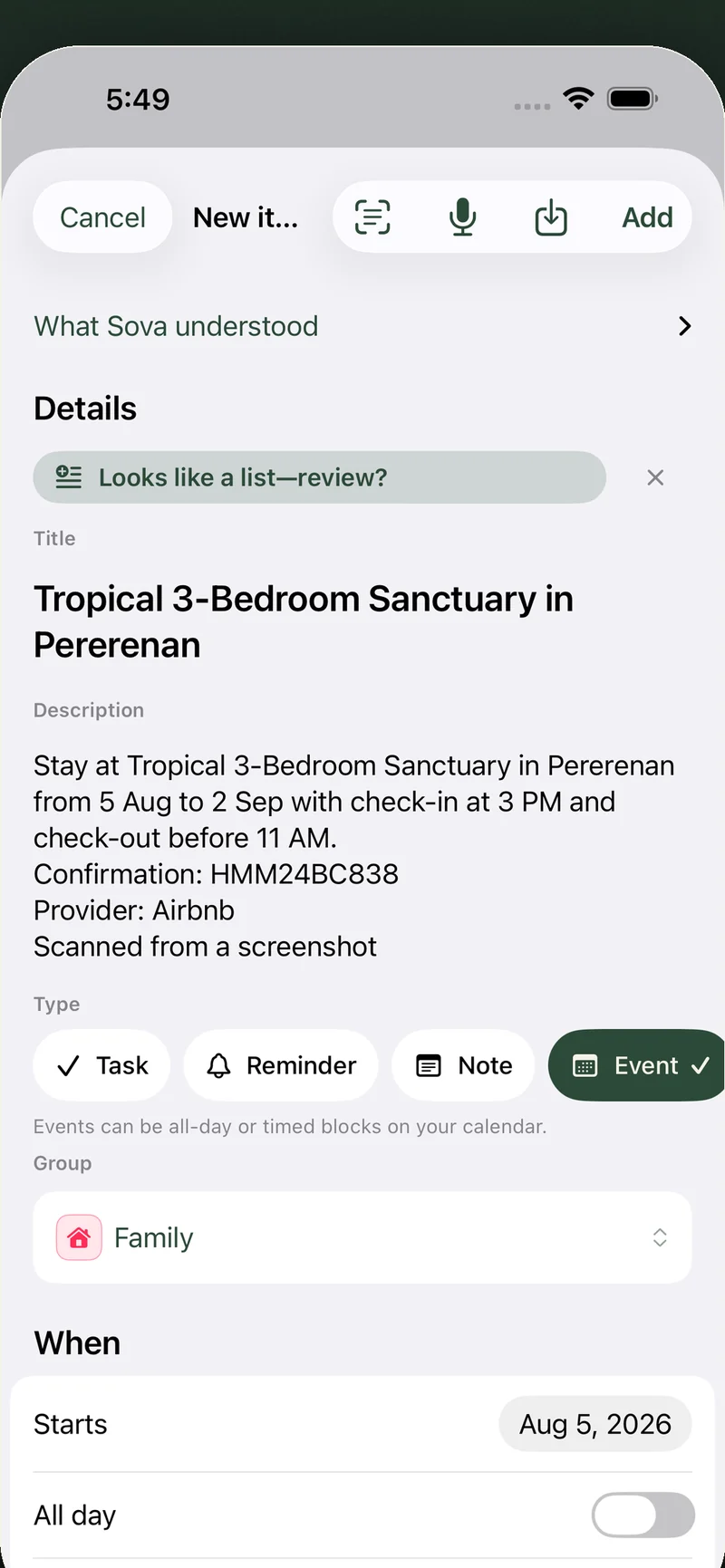
How it works
- Take the screenshot. In the confirmation email or booking page, capture the block with the name and the dates — don't crop them away.
- Open it in Sova. In Create, tap Scan a screenshot — or open the app in Bring into Sova and choose Scan. Pick from the photo library, or take a photo of another screen (your laptop, a kiosk).
- Review and save. Sova drafts the event with everything it found. You check it, adjust anything, then save — nothing is ever added silently.
What it reads
Booking and hotel confirmations (Airbnb, Booking.com and the rest), flight and train e-tickets, meeting invites, restaurant reservations, event pages — one screenshot or up to four parts of the same document, in any language. If a screenshot isn't a booking or event, Sova says so instead of guessing.
Private by design
Your screenshot is sent securely to be read and is never stored — not on your phone beyond the draft you save, not on our servers. No ads, no tracking, nothing to sell.
Fair use
Scan is a Sova Pro feature ($4.99/month or $29.99/year) with 10 scans per day, and the day left is always visible in the app. Free keeps everything else: notes, Today, calendars, widgets, and two shared lists.
Sova is an everyday planner for iPhone — notes, tasks and every calendar you already use, in separate groups, with a home-screen widget. What Sova is → · Free vs Pro → · Scan in the full guide →
Get Sova free on the App Store →